![Soonjet for MacBook Pro 13 inch Case [100% Color Match] [Ultra Thin Armor] 2022-2016 M2](https://m.media-amazon.com/images/I/61jrxwvN-jL._UF1000,1000_QL80_.jpg)
Training time: 3-minutes
Hardware Overview: MacBook
In this training, you will learn how to:
- Connect and charge a MacBook
- Power on a MacBook
- Use a trackpad (base-level)
How to charge a MacBook:
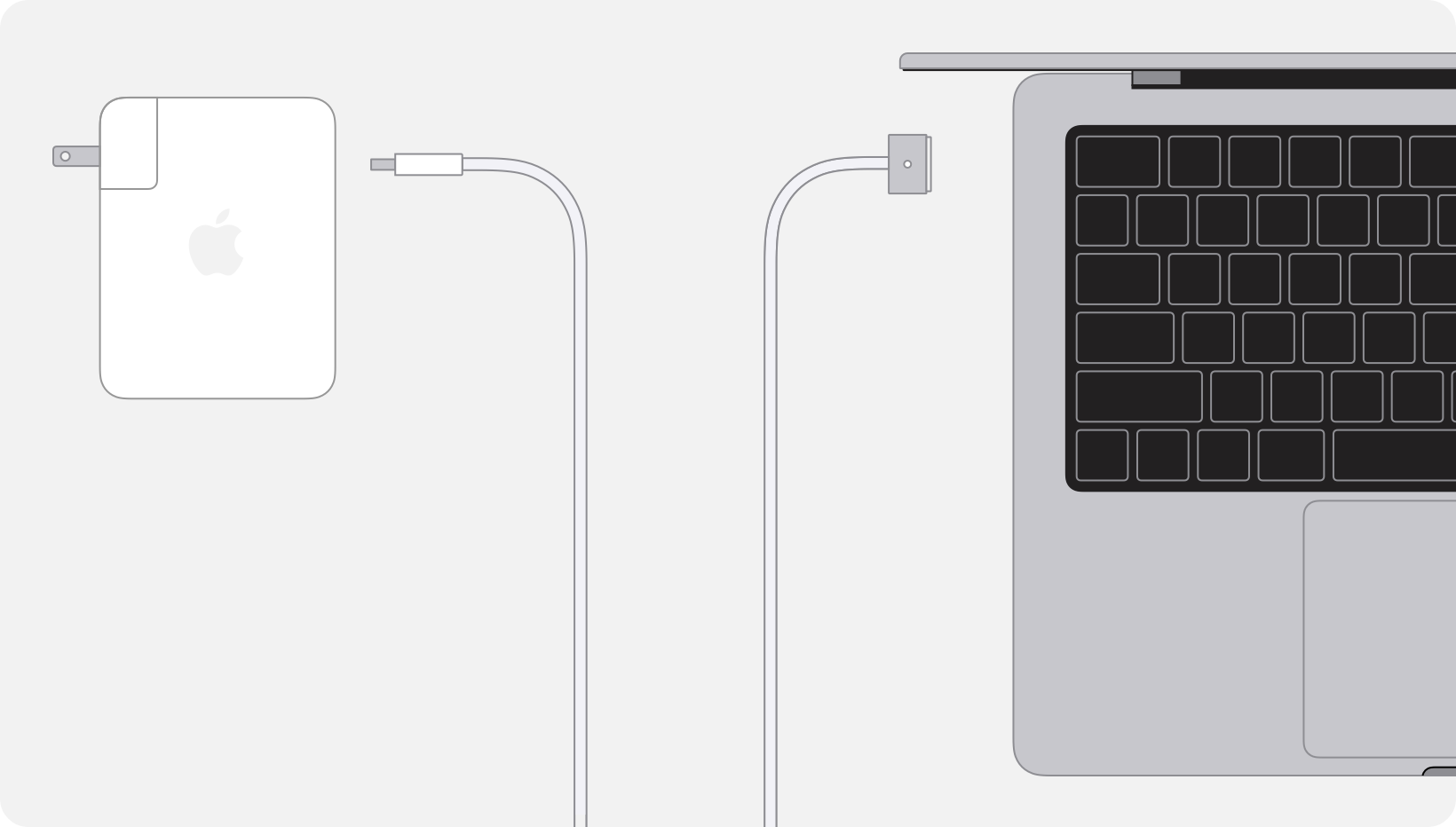
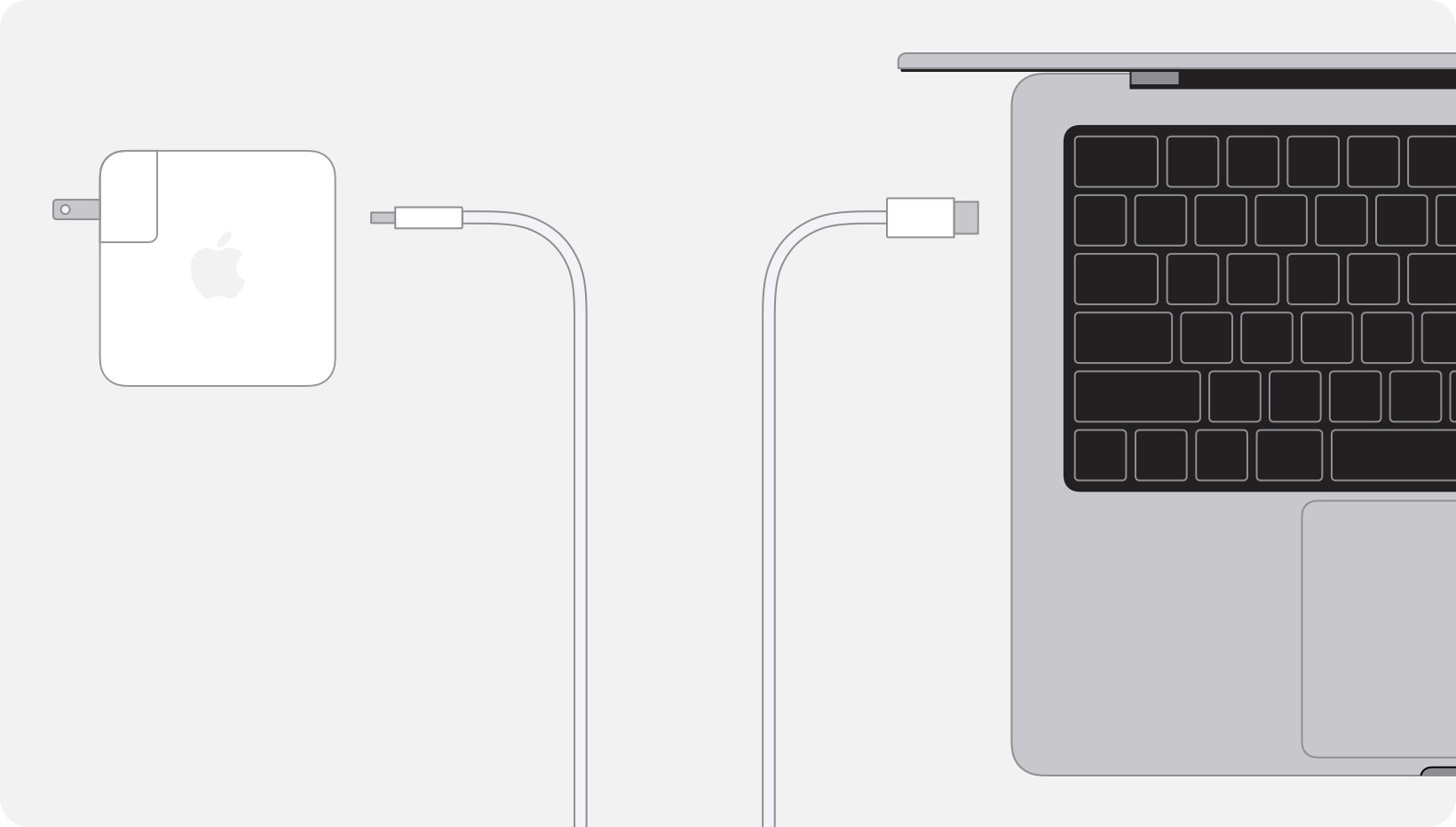
To charge a MacBook, plug the included USB-C power adapter into a wall outlet and connect the corresponding USB-C to MagSafe or USB-C to USB-C cable to the port of your MacBook. Refer to picture below.
USB-C to Magsafe cable
USB-C to USB-C cable
How to power on a MacBook:
To turn on a MacBook, simply open the lid. If it doesn't automatically start, press the power button located in the top-right corner of the keyboard until the Apple logo appears. Refer to picture below.
How to use a built-in trackpad:
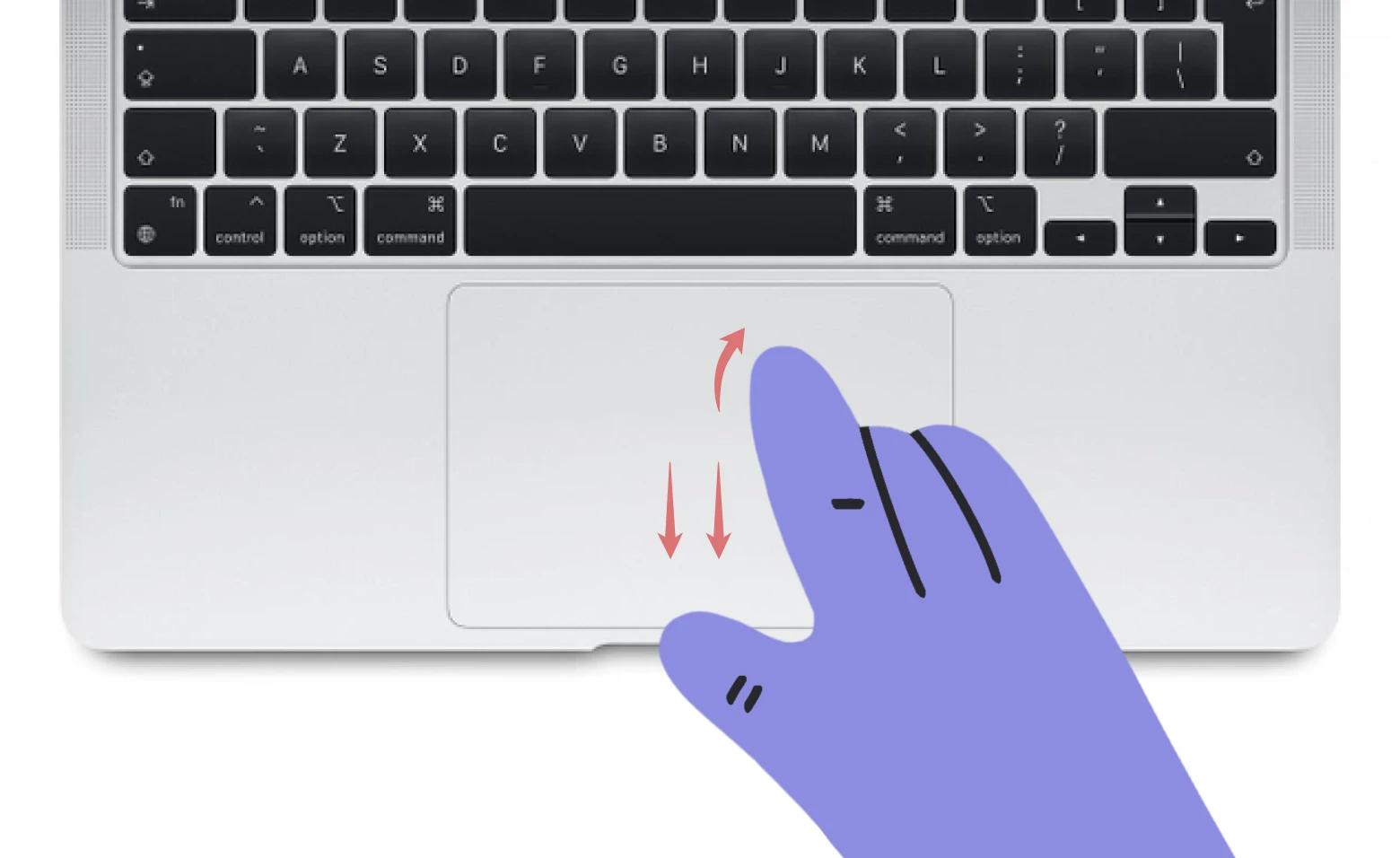
A trackpad is a built-in touch-sensitive surface that serves as a mouse, allowing users to control the cursor and interact with content through gestures like scrolling, swiping, pinching, and more. You will only need to know the base-level of a trackpad for the IT onboarding session. Refer to table and picture below.
| One-Finger Click | This is a standard click— used to generally select and/or move items. |
| Two-Finger Click | This is a secondary click (also known as "right-click")—used to access a menu of additional options for the selected item. |
| One-Finger Swipe | One-Finger swipes on a trackpad are to control navigation of the cursor. |
| Two-Finger Swipe | Two-Finger swipes on a trackpad are to swipe between pages (back/forward). |